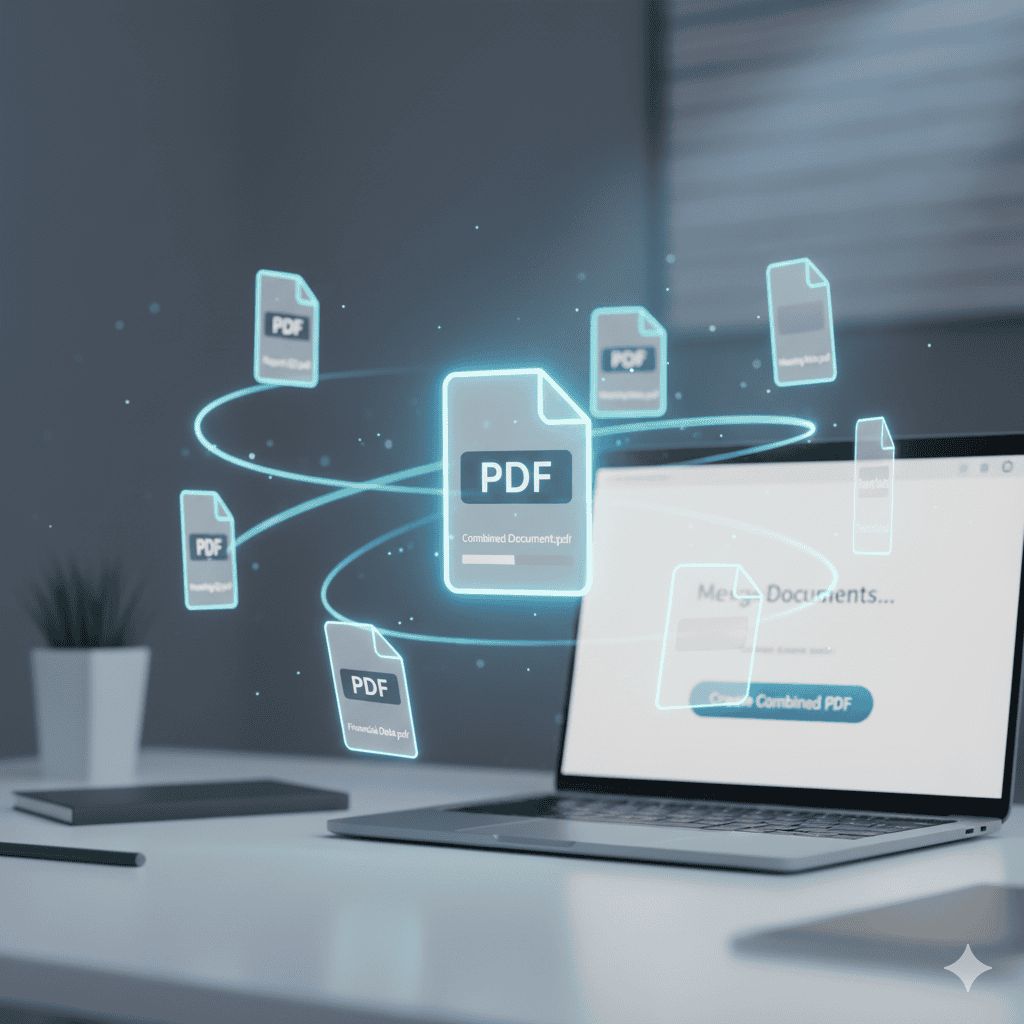
Ever found yourself juggling multiple PDF files for a single project? Whether you’re compiling research papers, organizing invoices, or preparing a presentation, merging PDFs can save you time and keep your documents organized.
The good news? Your Mac has built-in tools that make combining PDFs surprisingly easy.
Why You Should Merge PDF Files
Before we jump into the how-to, let’s talk about why merging PDFs matters.
Combining multiple PDF documents into a single file offers several practical benefits. First, it makes document management significantly easier. Instead of tracking down five separate files for a client proposal, you have everything in one place. This streamlined approach also makes sharing documents more efficient—your colleagues won’t need to download and open multiple files.
For professionals handling contracts, reports, or portfolios, merged PDFs present a more polished appearance. Students can combine lecture notes and assignments into organized study materials. Remote workers can consolidate expense receipts or project documentation without the hassle of attaching numerous files to emails.
The efficiency gains are real. One merged file means faster printing, simpler file transfers, and better organization across your digital workspace.
Method 1: Use Finder (The Fastest Way)
If you need to quickly merge complete PDF files without any page rearrangement, Finder offers the simplest solution. This method takes less than 30 seconds and requires no additional apps.
Step-by-Step Instructions:
Step 1: Open Finder and navigate to the folder containing your PDF files.
Step 2: Select the PDF files you want to combine. Hold down the Command (⌘) key and click each file to select multiple documents. The files will merge in the order you select them, so choose carefully.
Step 3: Right-click on any of the selected files.
Step 4: From the context menu, choose Quick Actions, then click Create PDF.
Step 5: Your Mac will instantly create a new merged PDF file in the same folder. The new file will have a name based on the first file you selected.
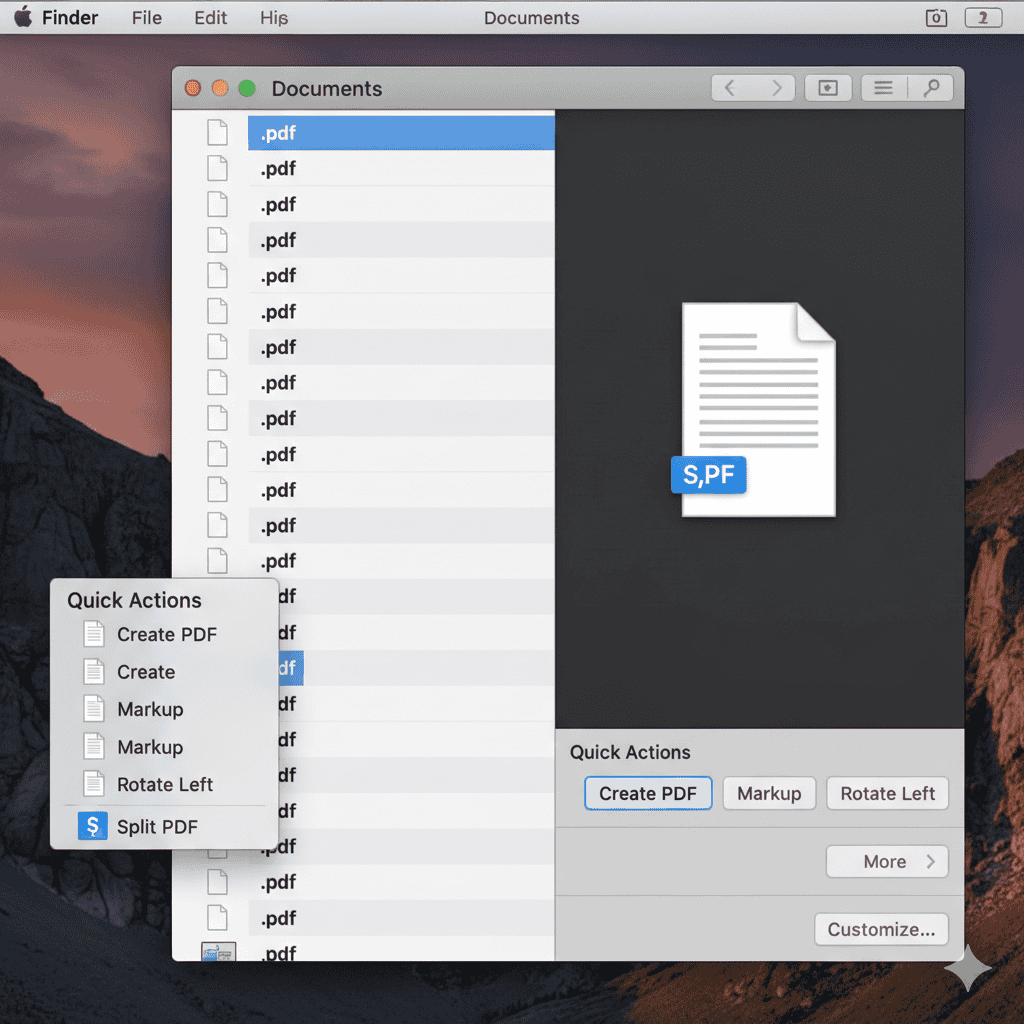
When to Use This Method:
Finder works perfectly when you need to merge entire PDF documents quickly without worrying about page order or editing individual pages. It’s ideal for combining invoices, receipts, or similar documents where the sequence doesn’t require fine-tuning.
However, this method has limitations. You cannot reorder pages, select specific pages from each document, or preview the result before saving. For those tasks, you’ll need Preview.
Method 2: Use Preview (Maximum Flexibility)
Preview is Apple’s built-in PDF viewer, and it’s surprisingly powerful for merging documents. Unlike Finder, Preview gives you complete control over which pages to include and their final order.
Merging Complete PDF Files:
Step 1: Locate your PDF files in Finder. Right-click the first PDF and select Open With > Preview. Repeat this for each PDF you want to merge.
Step 2: In Preview, go to View > Thumbnails (or press Option + Command + 2). This displays all pages as thumbnails in the left sidebar.
Step 3: Select the page in the first PDF where you want to insert the second document.
Step 4: Click Edit > Insert > Page from File in the menu bar.
Step 5: Choose the PDF file you want to add and click Open. The entire document will be inserted at your selected location.
Step 6: Save your merged PDF by selecting File > Export as PDF. Choose a new name and location, then click Save.
Merging Specific Pages:
For more precise control, you can select individual pages from different PDFs:
Step 1: Open all PDFs you want to merge in Preview.
Step 2: Enable Thumbnails view in each window.
Step 3: Hold the Command (⌘) key and click to select specific thumbnails you want to combine. You can select multiple non-adjacent pages.
Step 4: Drag your selected thumbnails from one PDF’s sidebar into another PDF’s sidebar. Drop them exactly where you want them to appear.
Step 5: Rearrange pages by dragging thumbnails up or down in the sidebar.
Step 6: Export your final document using File > Export as PDF.
Important Warning:
Preview automatically saves changes to open documents. Before merging, always create a backup by selecting File > Duplicate to avoid accidentally overwriting your original files.
Pro Tips for Preview:
- To merge an entire PDF at once, drag the PDF file icon from Finder directly into the Preview sidebar (instead of individual pages)
- Use Command+click to select multiple non-consecutive pages
- The gray arrow above thumbnails can be clicked to change the sidebar view orientation
Method 3: Use Online PDF Mergers (No Installation Required)
Sometimes you need to merge PDFs on the go, or you’re working on a Mac that isn’t yours. Online PDF merge tools offer convenience without installing software.
Recommended Online Tools:
Several reliable free options exist, including Adobe Acrobat online tools, Dropbox PDF editor, and other dedicated PDF mergers.
General Steps for Online Merging:
Step 1: Visit your chosen online PDF merger tool through your web browser.
Step 2: Click the upload area or drag and drop your PDF files into the designated zone. Most tools allow you to upload multiple files simultaneously.
Step 3: Arrange the files in your preferred order using the thumbnail previews. Many tools let you drag files to reorder them.
Step 4: Click the Merge or Combine button to process your files.
Step 5: Download the merged PDF to your Mac once the processing completes.
When to Use Online Tools:
Online mergers work well for occasional use, when you’re traveling, or when working on someone else’s computer. They’re convenient for quick tasks and don’t require any software installation.
However, consider privacy and security. Uploading sensitive documents to third-party servers carries inherent risks. For confidential business documents, patient records, or personal financial information, stick with offline methods like Preview or Finder.
Also be aware that some online tools have file size limitations or require account creation for full functionality.
Method 4: Use Third-Party PDF Editors (Advanced Features)
If you regularly work with PDFs and need features beyond basic merging, dedicated PDF editing software might be worth the investment.
Popular Options:
Adobe Acrobat DC remains the industry standard, offering comprehensive PDF tools including advanced merging, editing, form creation, and digital signatures. While it requires a subscription, its features are unmatched for professional use.
PDFgear, PDF Expert, Foxit PDF Editor, and similar applications provide robust PDF management at various price points. Many offer free trials so you can test before committing.
Typical Merging Process in Third-Party Apps:
Most professional PDF editors follow a similar workflow:
Step 1: Open the application and look for a Combine Files or Merge PDFs option (usually under File, Tools, or Convert menus).
Step 2: Click Add Files to select the PDFs you want to merge. Some apps let you add entire folders.
Step 3: Arrange files in your desired order using provided controls (often arrow buttons or drag-and-drop).
Step 4: Configure any additional options like compression, page range selection, or output quality.
Step 5: Click Combine or Merge to create your new PDF.
Step 6: Save or export the merged document to your chosen location.
When Third-Party Apps Make Sense:
Consider investing in dedicated PDF software if you:
- Handle large volumes of PDFs daily
- Need advanced features like OCR (text recognition from scanned documents)
- Require precise editing capabilities beyond simple merging
- Work with encrypted or password-protected PDFs regularly
- Need to compress large files after merging
- Want annotation tools, form creation, or digital signature features
For occasional PDF merging, Preview and Finder provide everything most Mac users need.
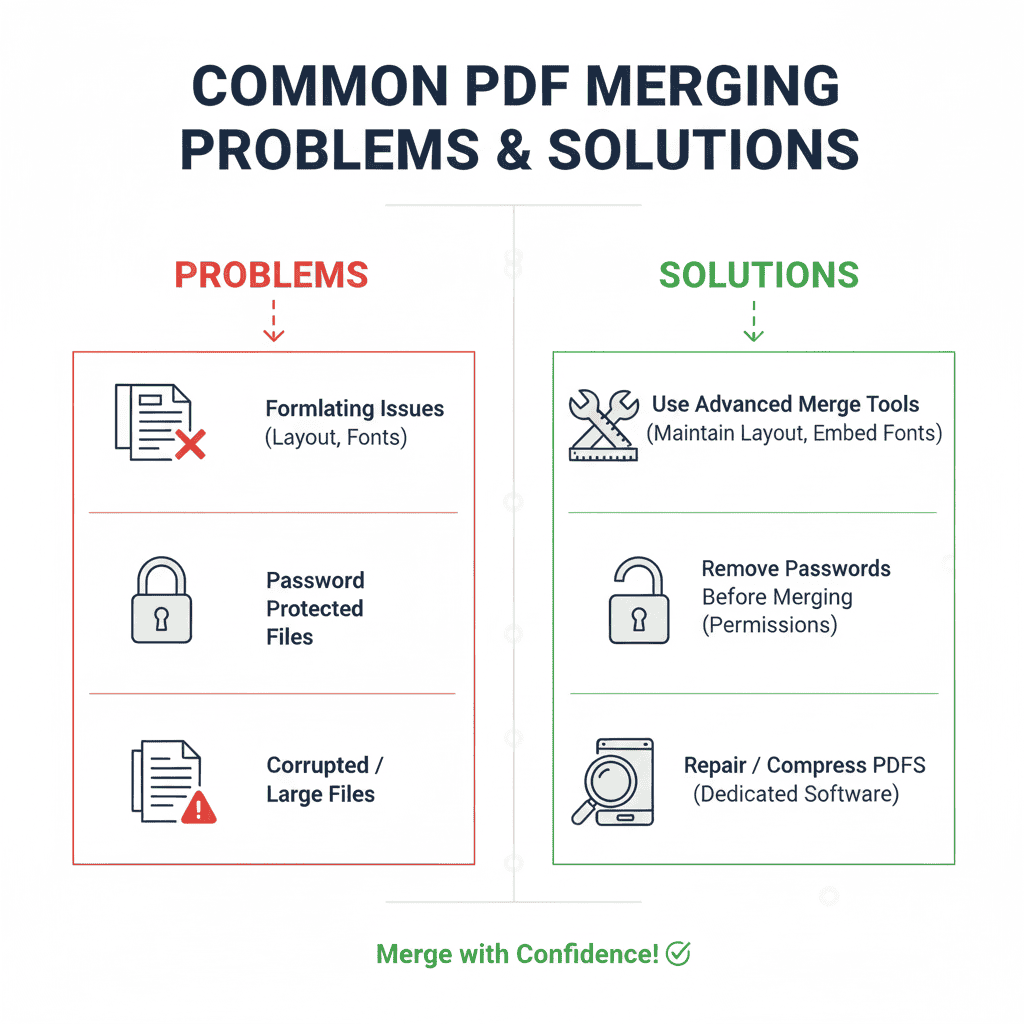
Troubleshooting Common PDF Merging Problems
Even with straightforward tools, you might encounter issues when merging PDFs on Mac. Here are the most common problems and their solutions.
Problem 1: PDFs Won’t Merge in Preview
Symptom: When you try dragging thumbnails, nothing happens, or Preview won’t let you insert pages.
Solutions:
- Verify your files are actually PDFs, not images saved with a .pdf extension. Some scanners save files as JPEG or TIFF with PDF wrappers.
- Check if the PDF is encrypted or password-protected. Preview has trouble with some security settings.
- Try converting both files by opening them in Preview and selecting File > Export as PDF before attempting to merge.
- Make sure you’re dragging thumbnails onto the exact drop position, not beyond the divider lines in the sidebar.
Problem 2: Preview Freezes or Crashes
Symptom: Preview becomes unresponsive when working with multiple PDFs or large files.
Solutions:
- Merge fewer files at a time. Instead of combining 10 PDFs at once, try merging them in pairs first.
- Close other applications to free up system memory.
- Restart your Mac to clear temporary system glitches.
- Update macOS to the latest version, as Apple regularly fixes Preview bugs.
- If the problem persists, use Finder’s Quick Actions or an online tool instead.
Problem 3: Merged Pages Appear in Wrong Order
Symptom: After merging, pages are jumbled or not in the sequence you expected.
Solutions:
- In Preview’s thumbnail sidebar, click the gray arrow above thumbnails to change the view orientation.
- Carefully drag thumbnails to reorder them before saving.
- Remember that Finder’s Quick Actions merges files in the order you select them, not alphabetically.
- For precise control, use Preview and manually drag each page into position.
Problem 4: Merged PDF File Size is Too Large
Symptom: Your combined PDF is surprisingly large and difficult to share via email.
Solutions:
- When exporting in Preview, choose File > Export instead of Export as PDF, then select Quartz Filter > Reduce File Size.
- Use an online compression tool after merging.
- Consider whether all pages are necessary—removing unnecessary pages reduces file size.
- For high-resolution scanned documents, adjust scanner settings to use lower DPI (dots per inch) before scanning.
Problem 5: Cannot Open Encrypted PDFs
Symptom: Preview asks for a password, or won’t open certain PDFs for merging.
Solutions:
- If you know the password, enter it to unlock the document first.
- Some PDFs have restrictions preventing copying or modification. You may need the original creator’s permission or specialized software to work around these limitations.
- Try opening the encrypted PDF in Adobe Acrobat Reader, then save an unprotected copy if permissions allow.
Frequently Asked Questions
Q: Can I merge PDF files on Mac for free?
Yes, absolutely. Both Finder and Preview are free built-in Mac applications that handle PDF merging without any additional software purchases. These tools cover most common merging needs.
Q: How many PDF files can I merge at once on Mac?
There’s no strict limit when using Preview or Finder, but practical limitations exist based on your Mac’s memory and processing power. For best results, merge 10-15 files at a time. If you need to combine more, merge them in batches first, then combine those batches.
Q: Will merging PDFs affect the quality of my documents?
When using Preview’s “Export as PDF” feature, your documents maintain their original quality. However, if you choose the “Reduce File Size” filter during export, some compression occurs which may reduce image quality slightly. For professional documents, skip the compression filter.
Q: Can I merge PDFs with different orientations?
Yes, Preview handles PDFs with different orientations (portrait and landscape) without issues. Each page maintains its original orientation in the merged document.
Q: How do I split a merged PDF back into separate files?
Open the merged PDF in Preview, enable Thumbnails view, select the pages you want to extract, then drag them to your desktop or a folder. Each dragged selection becomes a new PDF file.
Q: Is it safe to merge PDFs using online tools?
For non-sensitive documents, reputable online PDF mergers are generally safe. However, avoid uploading confidential information like medical records, financial data, or legal documents to online services. Stick with Preview or Finder for sensitive materials.
Q: Can I merge PDFs on my iPhone or iPad?
Yes, iOS devices also support PDF merging using the Files app or third-party applications. However, the process differs from Mac methods described in this guide.
Final Thoughts
Merging PDF files on your Mac is straightforward once you know which tool to use. For quick tasks, Finder’s Quick Actions gets the job done in seconds. When you need more control, Preview offers the flexibility to arrange pages exactly how you want them.
Remember to backup important files before merging and use offline methods for sensitive documents. Now you’re equipped to tackle any PDF combining task that comes your way.
Want more helpful PDF tips and tricks? Subscribe to The PDF Insider newsletter for expert guides, software reviews, and productivity hacks delivered straight to your inbox.