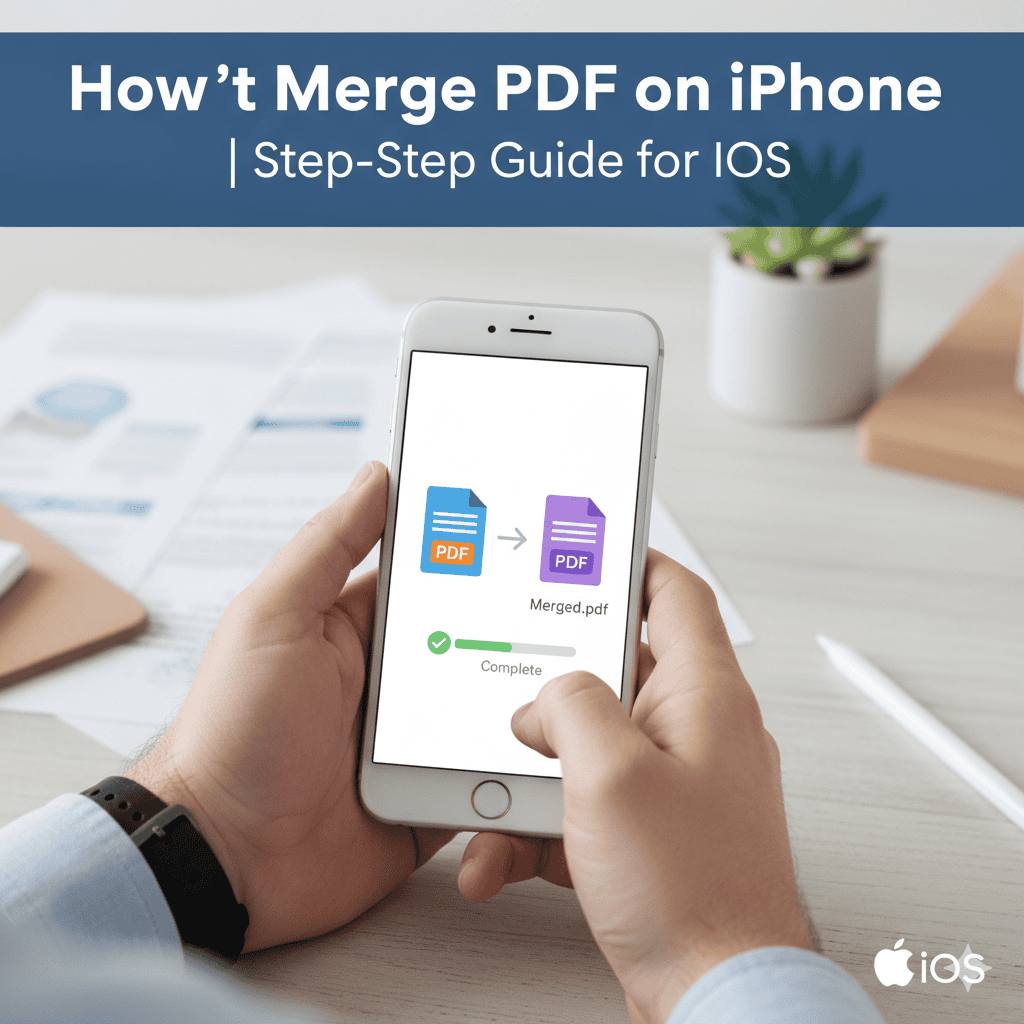
Merging PDF files on your iPhone is a common requirement—whether you’re combining scanned documents, receipts, contracts or reports. This article will walk you through how to merge PDF on iPhone using built-in tools and apps, explain when each method makes sense, offer expert tips, and answer lesser-known FAQs. By the end of this guide, you’ll be able to merge PDFs quickly, reliably and with full control.
Why You Might Need to Merge PDFs on iPhone
Merging PDFs on iPhone addresses several practical needs:
- You’ve scanned multiple pages or documents and want to send a single file instead of many attachments.
- You’re preparing a report, presentation or submission and want to combine separate PDFs (e.g., receipts + cover sheet) into one.
- You want to archive or store related documents (invoices, certificate pages) in one compact PDF.
- You’re working mobile-only (on iPhone) and need to avoid going to a computer to merge files.
By enabling merging directly on iPhone, you reduce friction and stay productive without switching devices.
Built-in Method: Using the Files App
One of the easiest ways to merge PDF on iPhone is using Apple’s built-in Files app (iOS 15+). This method is free and doesn’t require extra downloads.
Step-by-Step
- Open the Files app and navigate to the folder containing the PDF files you want to merge.
- Tap Select (usually at the top right) and choose the PDF files.
- (Optional) If you care about the order of the merged pages, rename your files in the sequence you want them to merge since the Files app merges based on file name order.
- After selecting, tap the three-dot “More” icon (⋯) in the toolbar.
- Tap Create PDF (or similar). The Files app then creates a new PDF containing the selected files.
- The newly merged PDF appears in the same folder. You can rename, move or share it.
- If you no longer need the separate PDFs, delete them (manually) to reduce clutter.
Pros & Cons
Pros:
- No extra app download or subscription.
- Quick and integrated into iOS.
- Works offline.
Cons: - Limited control over the order of files (relies on filename sorting).
- Doesn’t offer advanced PDF editing (reordering pages inside, deleting pages).
- If your files are scattered across different folders or cloud services, you may need to move them first.
- Merged file may default to the name of the first file. MakeUseOf
Tips for best results
- Rename files with prefixes like “01-”, “02-” to force order.
- Keep all PDFs in one folder for ease of merge.
- After merging, double-check the merged file pages to confirm order.
- Delete originals only after verifying merged file integrity.
Built-in Method: Using Shortcuts for Automation
If you frequently merge PDFs on iPhone and want more automation, the Shortcuts app is a smart approach.
Setup & Use
- Use or download a “Merge PDFs” shortcut.
- In the Files app, select the PDFs you want, then tap Share → choose the “Merge PDFs” shortcut.
- The shortcut may prompt you for order (you can reorder selected files) and where to save the merged PDF.
- You can even configure the shortcut to automatically delete originals, rename merged file, or pick a specific folder.
When to Use This
- You merge PDFs regularly and want a repeatable workflow.
- You want more control (ordering, destination folder, file naming) than the basic Files app.
- You like using automation and have many documents to process on the go.
Considerations
- Permissions: The Shortcuts app needs access to your files (Files app) for it to work.
- Setup effort: You’ll need to configure or download a pre-made shortcut.
- Complexity: For one-off merges, the Files app method may be quicker.
Third-Party Apps & Online Tools
If you need more than just a simple merge—e.g., reorder pages, rotate pages, compress PDF, combine with images—third-party tools are excellent.
Top App Options
- PDF Expert by Readdle: Lets you merge, reorder, delete pages, etc.
- PDFelement for iOS: Free to merge, good interface.
- iLovePDF: Online & mobile friendly, supports merge + other tools.
- Microsoft 365 app: Supports merging PDFs as a premium feature.
How to Choose Safely
- Check reviews and ratings on the App Store.
- Ensure the app has offline functionality if desired (so your PDFs aren’t uploaded).
- Review privacy policy: Are files stored locally or uploaded?
- Confirm support for the actions you need (merge + reorder pages).
- Free vs paid: Some features (like page reordering) may require subscription.
Online Tools
You can also merge PDFs via mobile browser using tools like the merge service from Adobe. Or via general online merge tools that claim “works on any device”.
Note: When using online tools, ensure you trust the site with your files—especially if they contain sensitive data.
How to Merge PDFs on iPhone: Detailed Walk-Through
Here’s a comprehensive workflow to follow when you want to merge PDFs on your iPhone, with all the preparation steps and checking.
Pre-Merge Preparation
- Identify all the PDF files you want to combine. They may reside on iCloud Drive, “On My iPhone”, Dropbox, Google Drive etc.
- Move or copy them into one folder if needed (especially for the Files app method).
- Rename files if you care about custom order (e.g., “A_Notes.pdf”, “B_Diagram.pdf”). The Files app merges in alphabetical sequence.
- Decide where you want to save the merged PDF (same folder, iCloud, etc.).
- If using a third-party tool, check whether you need to grant extra permissions or pay for features.
Merging via Files App
- Open Files → go to folder → Select → pick PDFs → More icon → Create PDF.
- Wait for the merge process (usually fast).
- Tap on the merged file to preview and ensure pages are in correct order.
- Rename the merged file if required.
- Share or send the merged file (Mail, Messages, upload to cloud).
- Optionally delete the original PDFs (after confirming the merged file is correct).
Merging via Shortcut or App
- If using Shortcuts: launch Merge shortcut, select files, reorder if prompted, choose destination, run the action.
- If using a third-party app: open the app → import/select PDFs → reorder pages if needed → hit “Merge” or “Combine” → save/export the new file → verify.
- After saving, again verify page order, file integrity (no missing pages, correct orientation).
- Then share or archive the file as needed.
Common Issues & How to Fix Them
| Issue | Fix |
|---|---|
| PDFs scattered in different folders | Consolidate them into one folder or use a tool that lets you pick across locations. |
| Wrong order of pages | Rename files or use a tool/app that allows manual ordering. |
| Files too large to send/share | Consider compressing the merged PDF or splitting it into smaller chunks. |
| App requests payment for merge feature | Evaluate if built-in Files method suffices or choose another app. |
| Orientation or missing pages in merged file | Preview before sharing; if problem persists try reorder or another tool. |
Best Practices and Tips
- Always keep a backup: Before deleting originals, keep them until you’re sure the merged one is perfect.
- Folder naming and file naming matters: Use clear, alphabetical prefixes for order.
- Use consistent file formats: Ensure each input is a proper PDF (not scanned image with weird orientation).
- Check page orientation after merge (rotation may be needed).
- Use offline tools for sensitive documents: If files contain private data, avoid uploading to unknown online services.
- Use cloud sync wisely: If you merge into iCloud, the merged file will sync across devices—good for access but consider storage usage.
- Automate when frequent: If you merge often, set up a Shortcuts workflow to save time.
- Consider archiving strategy: Merged PDFs are easier to store, search, and share.
- Keep metadata clear: In merged file naming use date or topic so you can locate later.
FAQ:
Yes—in most cases if your cloud service is integrated in Files, you can navigate to those folders, select files, and merge via Files app or import into an app.
It may, especially if files contain images or scanned pages. If the resulting PDF is too large to share, use a compression tool (many third-party apps offer this).
Not in the native Files app merge step. If you need to reorder pages, use a dedicated PDF app (e.g., PDF Expert).
Sometimes yes—you should check the tool’s privacy policy. If confidentiality matters, use offline apps or built-in methods.
Yes—many apps (e.g., PDFelement) allow converting images to PDF and then merging.
It depends on the source files—Files app will merge them as pages but may not preserve advanced features (links, interactive elements) as well as dedicated PDF editors.
Merging is usually fast for moderate file sizes; extremely large files may take longer. Make sure your iPhone is sufficiently charged and has storage space.
If the PDF is locked, you may need to unlock it (enter password) first. Some apps may not accept locked PDFs for merging until unlocked.
There’s no formal iOS imposed limit, but practical limits depend on file sizes, device free storage, and app capabilities.
Yes—many PDF apps let you split pages, extract or delete pages after merging. For example, PDF Expert supports that.
8. Conclusion
Merging PDF on iPhone is easier than ever, thanks to built-in tools and powerful third-party apps. Whether you choose the quick Files app method, set up a Shortcuts automation, or use a full-featured PDF editing app—your workflow can be streamlined.
Remember to name files thoughtfully, verify the merged output, and choose the right tool for your need and security requirements.