In today’s digital world, PDF files have become an everyday essential. Whether it’s study notes, invoices, work reports, or eBooks — PDFs help keep everything organized and shareable. But what if you have multiple PDF files and you want to combine them into one?
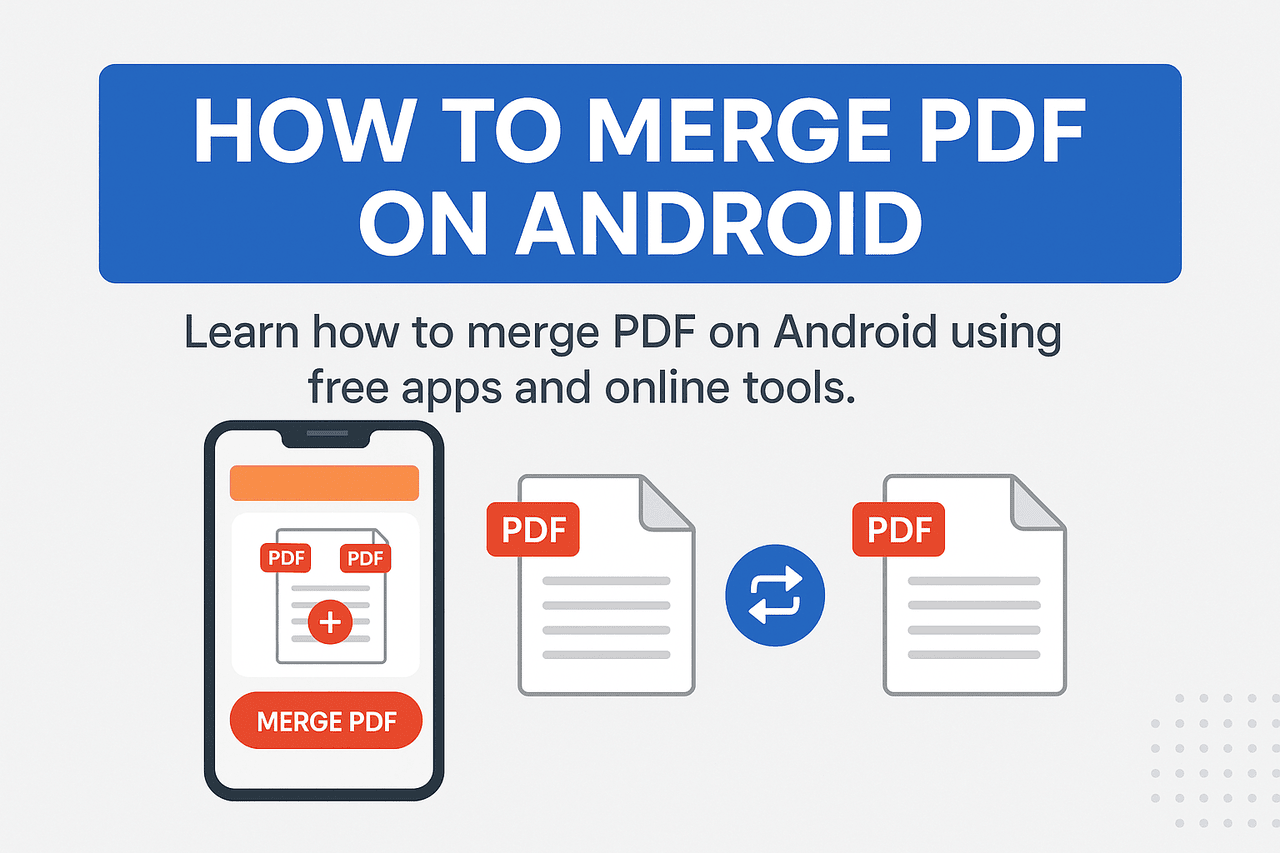
If you’re using an Android phone, you might be wondering, how to merge PDF on Android easily and for free. The good news is — you don’t need a computer or expensive software like Adobe Acrobat Pro to do this. Your Android device can handle it perfectly well.
Why Merge PDF Files on Android?
Before diving into the “how”, let’s quickly understand why merging PDFs is so useful:
- Organized Files: Combine multiple documents into a single, clean PDF.
- Easy Sharing: Sending one file is easier than sending ten attachments.
- Saves Storage Space: Merged PDFs often reduce redundancy and file clutter.
- Professional Presentation: Perfect for resumes, reports, invoices, and contracts.
- On-the-Go Productivity: No need to wait for a computer. Everything happens on your phone.
If you handle documents frequently — whether for work, school, or business — learning how to merge PDF files on Android is a time-saving skill.
Method 1: Merge PDF Files Using a Dedicated Android App
The easiest and most reliable method to merge PDF files on Android is by using a dedicated PDF merger app. There are many free apps available on the Google Play Store that can combine your files in seconds.
Let’s go through this method step by step.
Step-by-Step Guide (Using iLovePDF App)
One of the most popular apps for merging PDFs is iLovePDF — a free and secure tool available on the Play Store.
Step 1: Install iLovePDF
- Open the Google Play Store.
- Search for iLovePDF and install it.
- Open the app once installed.
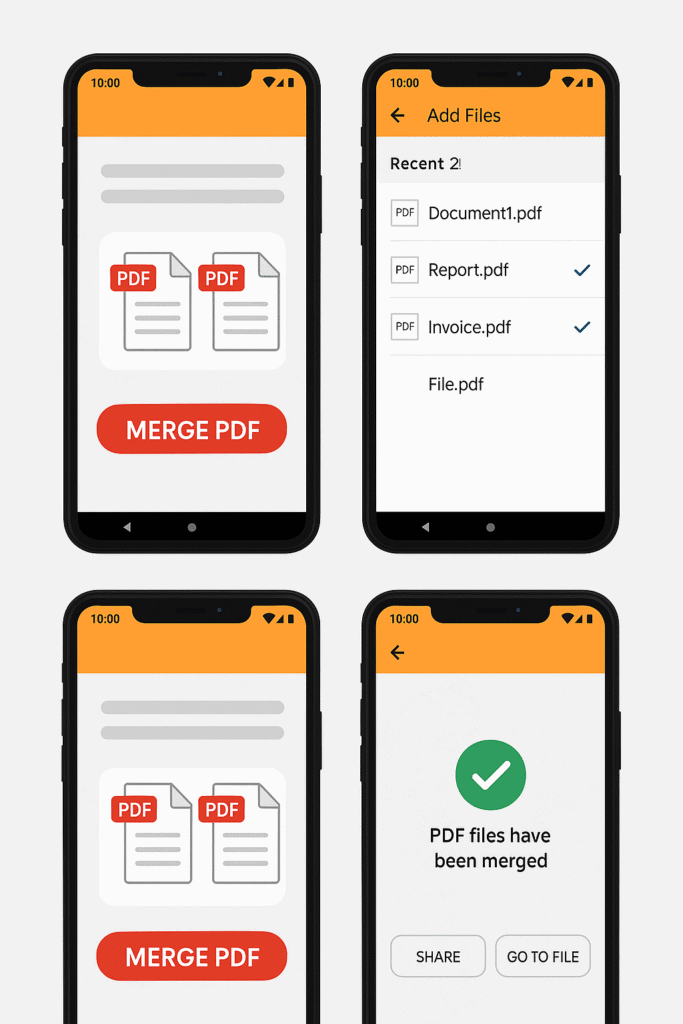
Step 2: Select Merge PDF
- On the home screen, tap on the ‘Merge PDF’ option.
Step 3: Add Your PDF Files
- Tap ‘+’ or ‘Select Files’ to upload multiple PDFs from:
- Your phone storage
- Google Drive
- Dropbox
- Or directly from WhatsApp/email downloads
Step 4: Arrange the Files
- Drag and drop the PDFs in your preferred order (first to last).
Step 5: Merge the PDFs
- Tap ‘Merge PDFs’ and wait for a few seconds.
- Once completed, you can preview, rename, or share the merged file.
Step 6: Save or Share
- Save it to your phone or share via WhatsApp, Gmail, or Drive instantly.
✅ Pro Tip: The iLovePDF app also lets you compress, convert, and edit PDFs — making it a full suite for managing documents on Android.
Alternative Apps to Merge PDFs on Android
If you prefer other options, here are a few trusted alternatives:
| App Name | Description | Free/Paid |
|---|---|---|
| SmallPDF | Fast, user-friendly, and integrates with Google Drive. | Free (limited) / Premium |
| PDF Utils | Lightweight, offline, and ad-free. | Free |
| Adobe Acrobat Reader | Trusted by professionals; has merge tools with subscription. | Free (basic) / Paid (merge feature) |
| WPS Office | Combines PDF merging, conversion, and editing. | Free (with ads) |
| PDF Merge (by CA Apps) | Simple drag-and-drop interface. | Free |
All these apps are safe, secure, and updated regularly, making them reliable for merging files even without an internet connection.
Method 2: Merge PDF Files Online (No App Required)
If you don’t want to install another app on your phone, you can also merge PDFs online using your Android browser.
Web-based tools are great for quick use and don’t take up any storage space.
Steps to Merge PDF Online
We’ll use SmallPDF.com as an example, but the steps are similar for all tools like PDF24, iLovePDF, SodaPDF, or ThePDFInsider’s PDF Merger.
Step 1: Open your browser (Chrome, Edge, or Firefox).
Step 2: Go to smallpdf.com/merge-pdf.
Step 3: Tap ‘Choose Files’ and upload PDFs from:
- Internal storage
- Google Drive
- Dropbox
Step 4: Arrange the files in order by dragging them.
Step 5: Tap ‘Merge PDF’ and wait for the process to finish.
Step 6: Download your merged PDF or save it to the cloud.
That’s it! You’ve successfully merged your PDF files without any app.
Popular Online PDF Merger Tools for Android
| Tool | URL | Key Features |
|---|---|---|
| iLovePDF | ilovepdf.com/merge_pdf | Simple interface, fast processing |
| SmallPDF | smallpdf.com/merge-pdf | Reliable and secure |
| PDF24 Tools | tools.pdf24.org/en/merge-pdf | 100% free and privacy-friendly |
| SodaPDF Online | sodapdf.com/merge-pdf | Cloud integration |
| ThePDFInsider Merge Tool | thepdfinsider.com | Optimized for mobile users, free forever |
✅ Pro Tip: Always ensure you’re using a secure (HTTPS) connection when uploading confidential documents to online tools.
Method 3: Merge PDFs Using Google Drive and PDF Reader Apps
If you already use Google Drive or Google PDF Viewer, you can use them together with third-party extensions to merge PDF files easily.
Here’s how:
- Upload all your PDFs to Google Drive.
- Long-press to select multiple files.
- Choose the “Open with” option and select Lumin PDF or DocHub (if connected).
- Once opened, you can combine, edit, and download the final merged version.
Though not as fast as using apps like iLovePDF, this method is perfect if you already rely on Google’s ecosystem for document storage.
Method 4: Merge PDF Files Offline (Without Internet)
If you travel frequently or prefer privacy, you can merge PDFs offline using apps that work without an internet connection.
Two of the best offline options are:
1. PDF Utils
- 100% offline and lightweight
- No login or ads
- Lets you rearrange, rotate, or compress PDFs
Steps:
- Install PDF Utils from Play Store.
- Tap on Merge PDFs.
- Choose the files and arrange them.
- Tap Merge — done!
2. Xodo PDF Reader & Editor
- A powerful offline PDF tool
- Lets you merge, annotate, and sign PDFs
- Perfect for professionals and students
Steps:
- Open Xodo PDF Reader.
- Go to File Manager → Select Files.
- Choose multiple PDFs.
- Tap Merge and export the combined file.
✅ Bonus: Xodo also allows you to highlight text, add notes, and draw directly on PDFs — making it great for editing merged documents.
Pro Tips for Merging PDF Files on Android
Here are some smart tips to make your merging process smoother and more professional:
- Keep File Names Short & Clear:
Rename files before merging (e.g., Invoice_Jan.pdf, Invoice_Feb.pdf). - Arrange Files Beforehand:
Decide the order of pages to save time later. - Compress After Merging:
Large PDFs? Use a PDF compressor to reduce file size without losing quality. - Use Offline Tools for Sensitive Files:
Avoid uploading confidential data to online servers. - Backup to Cloud:
Save merged PDFs to Google Drive or Dropbox for easy access anywhere.
Bonus: Merge PDF Files on Android Using WPS Office
If you already use WPS Office, here’s how to merge PDFs within it:
Step 1: Open WPS Office → Tap on Tools
Step 2: Scroll to PDF Tools → Choose Merge PDF
Step 3: Add multiple PDF files
Step 4: Tap Start Merge
Step 5: Save the merged file in your desired folder
WPS Office is a great all-in-one solution for documents — you can merge, edit, and sign PDFs seamlessly without switching apps.
Common Mistakes to Avoid When Merging PDFs
While merging PDFs on Android is easy, these mistakes can cost you time and file quality:
- ❌ Merging Scanned PDFs Without OCR:
If your PDFs are scanned images, use OCR tools to make text searchable. - ❌ Not Checking File Order:
Always preview the merged file before sharing it. - ❌ Using Untrusted Apps:
Avoid shady apps that request unnecessary permissions. - ❌ Uploading Sensitive Data Online:
Use offline apps for private files like contracts or personal IDs. - ❌ Skipping File Backup:
Always save a copy before merging — just in case something goes wrong.
FAQs About Merging PDFs on Android
Yes! Many apps like iLovePDF, PDF Utils are completely free to use.
Not necessarily. Tools like PDF Utils and Xodo PDF Reader work offline.
Yes, if you use trusted sites like SmallPDF, PDF24, or iLovePDF that use secure (HTTPS) encryption.
Yes! Apps like iLovePDF or WPS Office can convert images (JPG/PNG) to PDF and merge them together.
Not usually. Most tools maintain quality, but you can compress afterward to reduce file size if needed.
Final Thoughts
Merging PDF files on Android doesn’t have to be complicated. Thanks to modern apps and web tools, you can handle all your document tasks — merging, editing, converting, and signing — right from your smartphone.
Whether you’re sending a business proposal, combining notes, or organizing reports, these tools ensure your files stay neat, professional, and easy to manage.
So the next time someone asks, “How do I merge PDFs on Android?”, you’ll not only know the answer — you’ll be the expert.