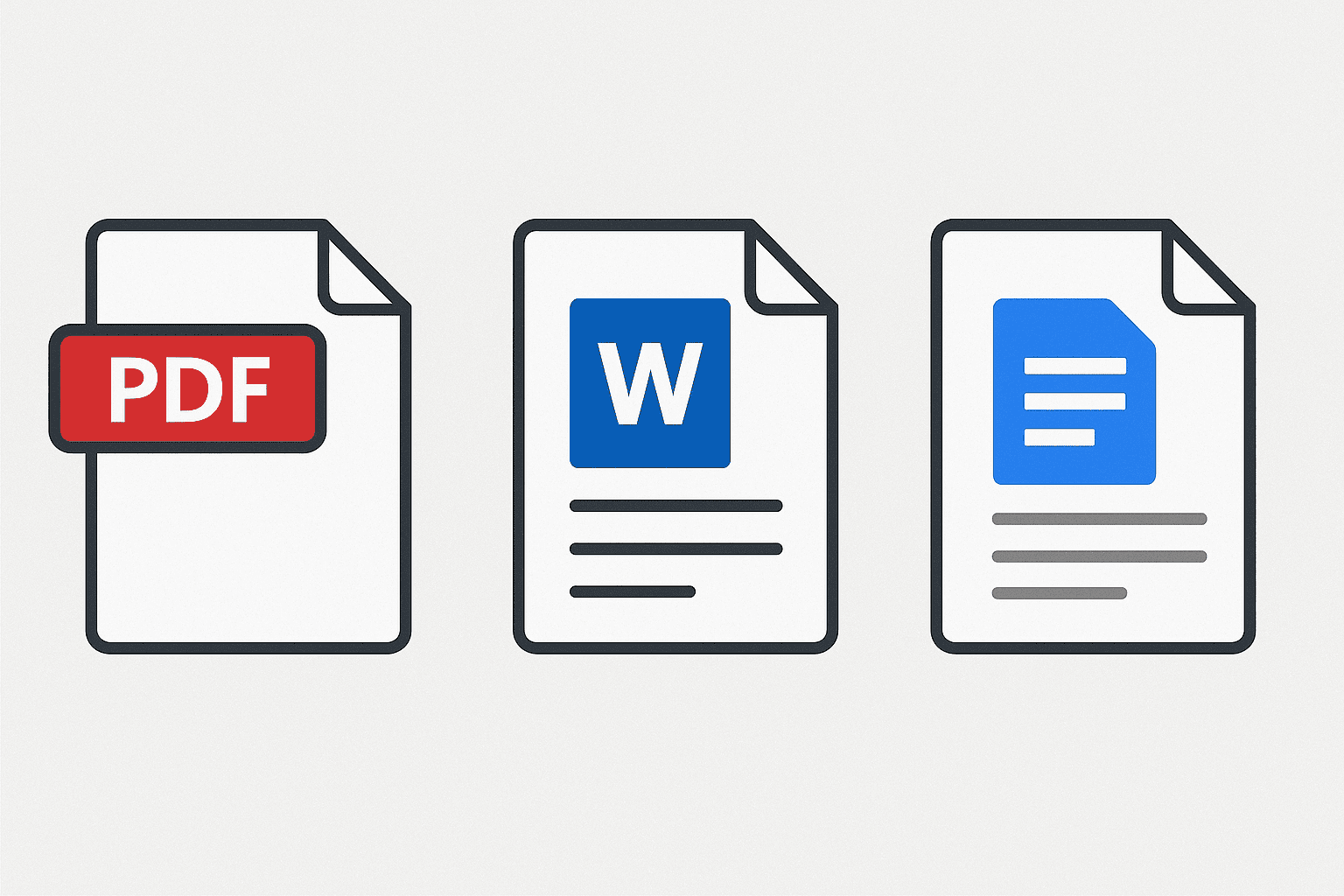
In an era of remote work, cloud collaboration and diverse devices, the question of which document format to choose is more relevant than ever.
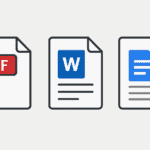
Should you use a static, widely-viewable format like PDF, a powerful editing format like Microsoft Word’s DOCX, or a cloud-focused, collaborative format like Google Docs?
Each format carries its own advantages, limitations, and ideal use-cases.
Understanding the Three Formats
1. What is PDF?
The PDF (Portable Document Format) was developed by Adobe Systems and is now an ISO standard (ISO 32000) for capturing a document’s appearance across devices and platforms.
Key characteristics:
- Fixed-layout: what you see is what you get — fonts, images, formatting are kept intact across systems.
- Widely viewable: Most devices and browsers support opening PDFs.
- Designed primarily for viewing / sharing / archiving rather than heavy editing.
- Supports features like encryption, digital signatures and annotations.
Quick summary: PDF = the “final version” format. Good for sharing, printing, archiving.
2. What is Word (DOCX / DOC)?
Microsoft Word’s DOCX (and older DOC) formats are proprietary (though DOCX is based on Office Open XML) and are optimized for creation and editing of text-rich documents.
Important traits:
- Highly editable: Extensive formatting, styles, tables, track-changes, macros, and advanced layout.
- Compatibility caveats: Older Word versions or different word-processors may struggle with complex formatting.
- Good for authoring: drafting, revising, editing by one or many contributors (especially in offline or desktop environments).
Quick summary: Word = the “working-document” format. Good for creation, heavy editing, rich formatting.
3. What is Google Docs?
Google Docs is a cloud-based word-processor offered by Google Docs (part of Google Workspace) that emphasises collaboration, accessibility and simplicity.
Highlight features:
- Real-time collaboration: Multiple people editing simultaneously.
- Cloud-native: Documents stored online, accessible from any device with internet.
- Simpler formatting capabilities compared to Word.
- Works well for shared drafts, team documents, lightweight layout needs.
Quick summary: Google Docs = the “collaborative” format. Great for teamwork, quick access, minimal friction.
PDF vs Word Vs Google Docs : Side-by-Side Comparison
Here’s a structured breakdown of how the three formats compare across key dimensions.
| Feature | Word (DOCX) | Google Docs | |
|---|---|---|---|
| Editing & revision | Minimal (read-only by default; editing requires special tools) | Full editing capabilities: styles, layout, track changes, macros | Good editing and real-time collaboration, but fewer advanced layout tools |
| Formatting fidelity / print readiness | High — retains layout across devices reliably | Generally strong, but formatting may vary across versions/ platforms | Adequate for many needs, less ideal for print-ready high-layout documents |
| Collaboration (teams, remote) | Weak native collaboration — sharing is fine but editing by many is cumbersome | Good (especially with Microsoft 365 and OneDrive) but setup can be heavier | Excellent — built for collaboration with simultaneous editing, version history |
| Device / platform accessibility | Very good — PDF viewers on almost all platforms | Requires Word or compatible word-processor; versions and compatibility matter | Very good — browser or mobile app access across devices |
| File size / overhead | May be larger for complex content; designed for viewing not editing | Variable; heavy features/macros increase size | Generally efficient, cloud storage simplifies size concerns |
| Long-term archiving / stability | Excellent — fixed layout, standardised, less likely to change over time | Good, but editable, may require future-proofing and version management | Depends on cloud service; exporting may be required for archiving |
| Security / permissions | Strong for view-only sharing, signatures, encryption | Editable format implies higher risk of unintended changes; requires permissions management | Good for sharing control, but cloud service reliance adds dependencies |
| Use-case fit | Finalised documents, forms, brochures, read-only distribution | Drafting, complex documents, heavy formatting, offline work | Team writing, shared brainstorming, remote collaboration |
When to Use Each Format: Practical Scenarios
Use PDF when…
- You want to distribute a document that must look exactly the same for all recipients — brochures, official reports, archived files.
- You need print-ready layout or want to control how the document appears (fonts embedded, page breaks fixed).
- You want to share a read-only or secure version, limiting editing, protecting content or applying digital signatures.
- Long-term preservation is a priority (archiving contracts, legal documents, standardised forms).
Use Word (DOCX) when…
- You’re creating or editing a document extensively — e.g., writing a report, thesis, publishing content, with multiple rounds of revision.
- You require rich layout or advanced features — e.g., mail-merge, macros, complex tables, footnotes, index, customized styling.
- You or your team are working offline, or on desktop fairly heavy-duty work, and need full editing freedom.
- You expect the document to go through many changes, reviews, tracked edits.
Use Google Docs when…
- You have a team or remote collaborators, multiple people editing simultaneously.
- You want cloud-native access, share-links, easy version history, across devices.
- The document formatting needs are moderate, no heavy custom layout, and you prioritise speed & simplicity over fine control.
- You need lightweight, quick creation of proposals, drafts, meeting notes, shared content.
Deciding Which Format for Your Workflow
To pick the best format, ask yourself a few targeted questions:
- What is the primary purpose of the document?
- Distribution / view-only → PDF
- Editing & drafting → Word or Google Docs
- Who will use it and how?
- A wide audience, varied devices → PDF
- A specific editor or group, substantial changes → Word
- A team working together, remote, many edits → Google Docs
- What level of formatting or layout is required?
- High-fidelity print layout → PDF or Word
- Simple web/online layout, flexible → Google Docs or basic Word
- How many revisions and collaborators?
- Many revisions, many collaborators → Google Docs
- Multiple revisions but limited collaborators and offline work → Word
- Final version only → PDF
- What about long-term stability / archiving?
- Archival / legal-compliance → PDF
- Work-in-progress to be revised later → Word or Google Docs
- What tools and ecosystem do you use?
- Office suite heavy user (Word) → Word
- Google Workspace user (Drive, Gmail) → Google Docs
- Need universal viewability, minimal dependencies → PDF
Decision-Matrix (Quick Guide)
| Scenario | Recommended Format |
|---|---|
| Final report to client, not meant to be edited | |
| Collaborative team writing a document that will evolve | Google Docs |
| Detailed business proposal with complex formatting, to be edited by you and then printed | Word (DOCX) |
| Archive of contracts or forms where layout matters and content must not change | |
| Shared meeting notes among remote team, edited live | Google Docs |
| A thesis or dissertation requiring styles, footnotes and detailed layout | Word |
Best Practices & Tips
- Convert when needed: It’s common to draft in Word or Google Docs and then export to PDF for distribution or archiving.
- Maintain master files: Keep editable master in Word or Google Docs, and export final version as PDF.
- Check compatibility: If you use Word, ensure collaborators have compatible version (DOCX vs DOC) to avoid formatting issues.
- Optimize PDFs for size: If sharing large documents, ensure PDF is optimized/compressed.
- Manage permissions: For Google Docs, set correct sharing (view/comment/edit) to avoid unwanted changes. For Word, track changes, version history.
- Archive smart: For long-term storage, prefer PDF for its fixed layout and broad support.
- Minimal formatting in Google Docs: If you anticipate heavy layout needs, start in Word instead of Google Docs.
- Regularly export cloud documents: For Google Docs, consider exporting to PDF or DOCX periodically for safety and archiving.
Advanced Considerations
- File size and performance: As noted, DOCX files may sometimes be smaller than equivalent PDFs because PDF stores layout and graphics differently.
- Cross-platform fidelity: The more complex the layout, the more likely Word → Google Docs conversions or PDF exports may distort formatting.
- Editing vs stability trade-off: Editable formats (Word, Google Docs) are flexible but also more susceptible to accidental changes. PDF tends to lock content.
- Collaboration ecosystem: Google Docs excels for live collaboration but may lack certain advanced features of Word (macros, advanced citations).
- Archival format standards: For legal/government, you may see requirements to use PDF/A (an archival variant of PDF).
- Hybrid workflows: Many organisations use Word for drafting, Google Docs for initial collaboration, and export to PDF for final sharing.
FAQs
Q1: Can I edit a PDF as easily as a Word document?
A1: Generally not. PDFs are meant for viewing or final distribution. Editing requires special PDF-editing tools and may be more cumbersome than using Word or Google Docs.
Q2: Is Google Docs format exportable to PDF or Word without issues?
A2: Yes — you can download a Google Docs file as DOCX or PDF. But beware: complex layouts or fonts may not translate perfectly.
Q3: If I use Word, should I always save as DOCX?
A3: Yes — DOCX has largely replaced the older DOC format because of better compatibility, smaller file size and improved features.
Q4: Which format is more future-proof for archiving documents?
A4: PDF (especially a standard like PDF/A) tends to be more future-proof because it fixes layout and is widely supported. Editable formats risk future compatibility issues or change.
Q5: What about mobile or low-spec devices — which format works best?
A5: PDFs tend to display reliably across devices, including mobile. Google Docs works well via mobile app or web, but may require internet connection. Word documents may need dedicated app or viewer, and formatting may shift.
Q6: Can I switch formats mid-workflow?
A6: Absolutely. A common workflow: Draft in Word → collaborate in Google Docs → export final version to PDF for sharing. Just keep track of master copies and conversions.
Conclusion
Choosing between PDF vs Word vs Google Docs comes down to aligning the format with your workflow:
- Use PDF when you need stability, guaranteed layout, broad accessibility, and minimal editing.
- Use Word (DOCX) when you’re doing heavy editing, need advanced layout, or working offline in a desktop environment.
- Use Google Docs when collaboration, ease of access, and cloud-based editing are your priorities.
Each has its place — and smart workers often use all three, at different stages of the document lifecycle.
For any document you’re creating, ask: “Who will edit this? What’s the output? How will it be shared? How long will it live?” The answers will point you to the right format.